
The ThinkVision P40wd-40: An Amazing Productivity Monitor with a Terrible Name
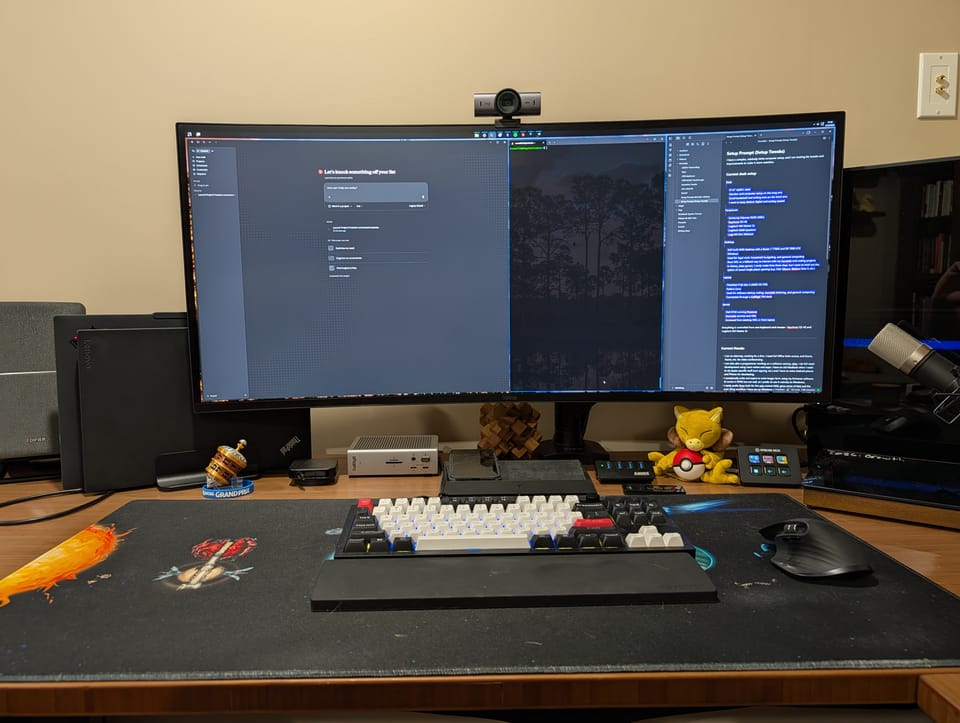
I'm not sure why Apple seems to be the only hardware manufacturer that names its laptops simple things like "MacBook Pro 2025" when other companies release models like the HP OmniBook 5 16t-ba100, or perhaps the Acer Aspire A14-52M-72FH AI Laptop. And in the monitor world, we have gems like the Dell U4025QW and, the subject of this article, the Lenovo ThinkVision P40wd-40.
It's an ugly moutful, but other than the name, I can't think of a single complaint I've had with the Lenovo ThinkVision P40wd-40 (let's just call it the ThinkVision going forward). I juggle a windows desktop and a linux laptop for a mixture of legal work, coding, my homelab, and various side projects. The ThinkVision has transformed the way I work.
At 39.7" with 5K2K ultrawide resolution and a 120Hz refresh rate, this beautiful, massive, pixel-dense screen will easily replace your second monitor. And with Lenovo's exceptional software, it goes further, turning your entire setup into a programmable, keyboard-controlled command center. After about a month of daily use, I can say it's one of the best investments I've made for remote work productivity.
What You're Actually Getting
The P40wd-40 is a 40-inch curved ultrawide with a 5120×2160 resolution (increasingly called 5K2K), 21:9 ultrawide aspect ratio, and an IPS Black curved panel. The IPS Black panel offers a 2000:1 contrast ratio versus the ~1000:1 you get with typical IPS panels. This means deeper blacks, richer colors, and a much more immersive look, especially if you're working in dark-themed applications. I'm not a picture snob but I couldn't help but see the difference.
Its 120hz refresh rate is a rarity in the business segment. To be honest, I don't need it for everyday work and despite what everyone on Reddit will tell you, I really just don't see a difference for basic productivity. But on the occasion I can find some time to get some gaming in, it's a welcome bonus. I would not buy this monitor with the express priority of gaming, but it's perfect for the digital independent who wants to let loose a bit in the evenings.
The panel is factory-calibrated with color accuracy hitting 99% sRGB and 98% DCI-P3, with a ΔE<2 color difference rating and 10-bit color depth for smooth gradations. The curve is a gentle 2500R, which means you get immersion without the fish-eye distortion that more aggressively curved displays suffer from. In my own incredibly subjective real-world use, I find the curvature to be perfect. But people have strong opinions on curve, and I am not here to step on those opinions.
Build Quality
Before we get to the software magic (and it is magic), I have just a bit to note on build quality. The monitor feels quite premium. The bezels are thin, the materials aren't flashy but they feel incredibly sturdy. Everything about the ThinkVision screams "this was designed for professional work."
It's the kind of monitor you don't mind having as the centerpiece of your workspace because it actually looks good. It's just big enough to immerse you completely in your work, but not too big or flashy as to overtake your entire setup. It's just there, ready to get work done.
The back has thoughtful cable management—clips and channels to keep your wires organized. You'll appreciate this if you've ever had a tangle of DisplayPort, HDMI, USB, and power cables snaking behind a monitor. The 2.5G Ethernet port built into the monitor is a unique feature you don't see in most monitors—it's incredibly useful if you want to share one ethernet connection between two computers in a KVM setup, but if you want one or both to have a persistent wired connection, you'll end up turning it off.
Connectivity: Tailor-Made For A Desktop + Laptop Dual Setup
The ThinkVision has HDMI, DP, and Thunderbolt, but its optimized for use with two devices, and the built-in KVM only works with two. One of those two has to be the thunderbolt port. The ThinkVision routes all attached USB peripherals either to the thunderbolt device (making it a complete thunderbolt dock replacement with 140W power delivery) or to whichever device you've connected to the USB-B upstream port.
If you have two laptops, you'll just need a standalone dock for one. You can route your DP or HDMI along with the USB-B upstream cable to the dock, and connect the dock to your second laptop (although you will need a separate power source to deliver juice to the laptop).
The built-in thunderbolt dock also supports daisy-chaining, which I use daily, although in my case it's complete overkill. I already have and was already using a CalDigit TS4 dock. I occasionally use the CalDigit's front USB ports and often use the SD Card reader. And so I just daisy-chain my CalDigit into my setup to feed the ports to my laptop. It's also nice having easily-accessible USB ports that are always connected to my laptop—every USB port on the monitor itself switches with your selected input.
There's a lot here, and I don't even feel like I've scratched the surface yet of all the connectivity functionality the ThinkVision offers.
Super-KVM: Your Cockpit for Multi-Machine Productivity
As I've already alluded to, the ThinkVision has a built-in KVM (keyboard-video-mouse) switch. This means you can connect two computers to the monitor—one via the USB-B upstream port and one via the USB-C upstream port—and switch between them. When you switch, your keyboard, mouse, webcam, USB microphone, and any other USB peripherals connected to the monitor's downstream ports follow the switch automatically.
There are some caveats here. It's worth noting that the KVM switching isn't instantaneous—there's a few-second delay each time you switch. The auto-switching feature (which tries to detect when you've plugged in a new machine and auto-select it) isn't reliable, so I just use manual switching, which works every time. The physical joystick button on the back gives you your on-screen controls, and lets you set quick start shortcuts for each direction. Pressing the stick in brings up your full menu, but for instance, you can set up the ThinkPad to KVM switch by pressing the stick to the right. This lets you switch quickly without fiddling through on-screen menu options (there are a lot of on-screen menu options).
You aren't limited to merely switching between video feeds. If your setup wants it, the ThinkVision lets you display both screens at once either picture-in-picture (PiP) or picture-by-picture (PbP). While the PiP lets you choose which of the screen's 4 corners displays your secondary screen (a level of customization I really don't need), I was disappointed to discover that PbP allows exactly one configuration: 50/50. I would have loved a 66/33 option, which lets your primary computer drive a normal-sized 16:9 monitor while still leaving a decent amount of screen real estate for a secondary computer. This is just quibbling, though. The configuration options available absolutely get the job done.
For power users, though, DDC/CI is where the real magic happens. Lenovo exposes all of its features to DDC/CI, an open protocol that lets you programmatically "speak" to the monitor. For me, this looks like scripts bound to hotkeys that let me activate the KVM switch without my fingers ever leaving the keyboard.
I am still digging into the advanced features (PbP, PiP) and Lenovo doesn't provide documentation so I am reverse engineering all of the functionality. Each advanced feature relies on specific state changes to multiple variables, so it isn't as straight-forward as input switching. I will almost certainly release a standalone article once I've cracked that code, but for now basic input switching (which also switches your keyboard, mouse, and other USB peripherals) is more than enough.
If you're on Windows, ControlMyMonitor works (although it cannot map all of the functionality, so if you're programming advanced features, you're in the dark). On Linux, ddcutil is your best friend. It's also more powerful than ControlMyMonitor. Even when I was already on my Windows desktop, when I was tinkering with new DDC commands, I always found myself switching over to my Linux laptop for more control.
Here's an example of what you can do with ddcutil on Linux:
# Switch the monitor input to HDMI (code 0x0F, value 0x11 for HDMI-1)
ddcutil setvvc 60 0x11

# Switch to DisplayPort (value 0x0F)
ddcutil setvvc 60 0x0F
I use KDE on my Linux laptop, and so I just bind my scripts to keyboard shortcuts in the KDE settings menu. Use whichever corresponding tool your flavor of Linux offers.
On Windows, I use AutoHotkey (which you should really be using anyway for the other amazing possibilities it unlocks, but I will leave that to another article). AutoHotkey can be set to run a ControlMyMonitor command, like so:
^!1::
{
    Run C:\path\to\ControlMyMonitor.exe /SetValue "Lenovo P40wd-40" 60 15
    return
}

^!2::
{
    Run C:\path\to\ControlMyMonitor.exe /SetValue "Lenovo P40wd-40" 60 17
    return
}
To Investigate: Automated Switching Possibilities
You can even take this further with cron jobs or Windows scheduled tasks to auto-switching your setup based on time of day. For example, a cron job at 9:00 AM could automatically switch the monitor to your work machine and another job at 6:00 PM could switches it to your Windows desktop to look at your Steam Library for an hour before mindlessly watching some YouTube Shorts and calling it a night.
You could also tie it into an existing smart home. I have hue lights in my study with difference scenes. I'm sure there is a way to glue these two things together so that when I activate an evening "chill" scene, it switches over to my personal machine.
Why One 40" Ultrawide Beats Two Flat Monitors
I want to talk about something that spec sheets never mention: neck strain and eye fatigue. I spent five years working with two side-by-side 27-inch flat monitors. I thought it was normal to constantly turn my head left and right, left and right, eight hours a day. It wasn't until I switched to the P40wd-40 that I realized how much that was costing me.
With two flat monitors, your gaze has to travel across the gap between them. Your head rotates. Your neck muscles engage. Over the course of a day, this creates tension. By the end of the week, I'd often have a knot in my neck and shoulders. I attributed it to "sitting too much," but the real culprit was the monitor layout.
The P40wd-40's gentle 2500R curve changes everything. Because the screen wraps around your field of view, everything you need to see stays in your peripheral vision and central vision. You don't need to rotate your head dramatically to see the far edges of the screen. The curve brings those edges closer to you naturally. Text remains straight (no fish-eye distortion), but the geometry of the display means you're looking more or less straight ahead at your work.
Additionally, because all your content exists on a single display instead of across two, there's less jumping around. Your eyes don't refocus as often. You're not scanning from one discrete monitor to another; you're scanning across a single unified field of view. It's a subtle difference, but it's noticeable by the end of the first week.
For people who work 8-10 hour days (and if you're remote, you probably do), this matters. I'm not claiming the P40wd-40 will cure all ergonomic problems—proper posture, monitor height, and a decent chair still matter—but switching from a dual-monitor setup to this ultrawide has genuinely reduced my neck and eye strain. That alone is worth something to me.
Who Should NOT Buy This Monitor
Not everyone should buy the P40wd-40, and not just because of the price. If you're a single-machine user a lot of the value added by this monitor is diminished. It remains a beautiful, highly productive ultrawide, but the price becomes more difficult to justify. The dual-machine workflow, the KVM, the DDC/CI programmability, the Picture-by-Picture mode—all of it is solving a problem that doesn't exist for you.
If you are not a heavy multitasker, if you don't find yourself taking advantage of a standard dual-monitor setup, this monitor will be overkill. If you are a gamer, and that is a priority, you want to look elsewhere. The Samsung Odyssey double-wide monitors are honestly still fantastic productivity monitors (although they offer less vertical space for programmers) and they are gaming beasts.
But if the unique combination of specs and features I've described are what you need, this is probably the best monitor on the market for you.
The Competition
The Dell U4025QW and LG 40WP95C are the main competitors in this space. They all offer the 5k2k resolution with a domineering 40" footprint, but the LG is seriously lacking in DDC programmability. I have not tested the U4025QW yet, but Dell is known for exposing features to DDC, so my assumption is that its KVM automation possibilities are on-par with the ThinkVision.
But both monitors lose on refresh rate. The Dell tops out at 60Hz, and the LG maxes out at 72Hz.
The LG sports the lowest retail price at $1,800, while the Dell and ThinkVision both retail at a whopping $2,200. But if you buy Lenovo, you know the drill: never pay full retail. I bought my ThinkVision for $1,050 out the door, and it can be purchased at the time of this review for $1,200. At that price, it doesn't just beat the competition on specs (although it does do that), it also destroys the competition on price.
Verdict: Your Command Center Awaits
The Lenovo ThinkVision P40wd-40 is one of the best purchases I've made for my remote work setup (and for better or worse, I've made a lot of purchases for my remote work setup). It replaces a dual-monitor desk with a single, cleaner, more capable display. It lets multitaskers jam a ton of windows on one screen. The massive resolution gives programmers the one thing that matters: more lines of code. It also replaces laptop docks and complicated KVM switches (which alone can add up to half the price of this monitor).
For freelancers and solopreneurs juggling multiple machines, this monitor is a genuine game-changer.
The ultrawide real estate alone improves focus and reduces the mental overhead of context switching. The KVM switch simplifies your physical workspace. The 120Hz refresh rate makes everything feel responsive and buttery smooth. The IPS Black panel with 2000:1 contrast means your blacks are actually black. The 140W Thunderbolt power delivery means you can charge any laptop at full speed without worry. But it's the DDC/CI programmability that really elevates this monitor for power users.
If you spend 40+ hours a week on a computer and you work across multiple machines, the P40wd-40 is worth the investment. The build quality is excellent, the design is thoughtful, and the feature set is unmatched in its category. I'm only a month in, but I can't imagine going back.
Member discussion